


4 Best Methods to Download Fansly Video on Android Devices
Fansly has quickly become one of those platforms people spend a lot of time on, whether it’s for exclusive videos, updates, or private content. And once you find something you like, it’s natural to want a way to keep it for offline viewing. That’s where Android users usually start looking for solutions.
Since there’s no official download option inside the app, people turn to other methods to save videos for later. In this article, we’ll share how to download Fansly videos on Android and walk through the most practical tools and methods you can actually use.
Can I Download Videos from the Fansly App?
The short answer is no, there’s no built-in download feature inside the official Fansly app or mobile browser version. Fansly is designed mainly for streaming content online, not saving it to your device. That means even if you’re using the app on Android, you won’t find an option to download videos for offline viewing directly. So what does that mean in real use? If you want to save videos, you’ll need to use alternative methods, such as third-party downloaders, browser-based tools, or screen recording. Each option works differently, and not all of them give the same quality or convenience.
Use Best Fansly Downloader for Android
The first option that we recommend is YT Saver for Android. If you want a simple way to save Fansly videos on Android without dealing with complicated steps, this tool is usually the easiest place to start. It’s built for downloading videos from Fansly, Onlyfans, TikTok and more. What makes it useful is its support for HD and 4K video downloads, multiple output formats like MP4 and MP3, and a built-in browser that lets you access websites directly inside the app. It also supports batch downloading, so you can save multiple videos at once without repeating the same steps.

- Support OnlyFans, Fansly, YouTube, Facebook, TikTok and more
- Download OnlyFans DRM Videos in 1080p HD
- Save Videos from OnlyFans Chat/Messages Easily
- Bulk Download Videos from Favorite OnlyFans Creators
- Comes with privacy mode to protect your downloaded Onlyfans contents
How to Download Videos from Fansly on an Android Phone?
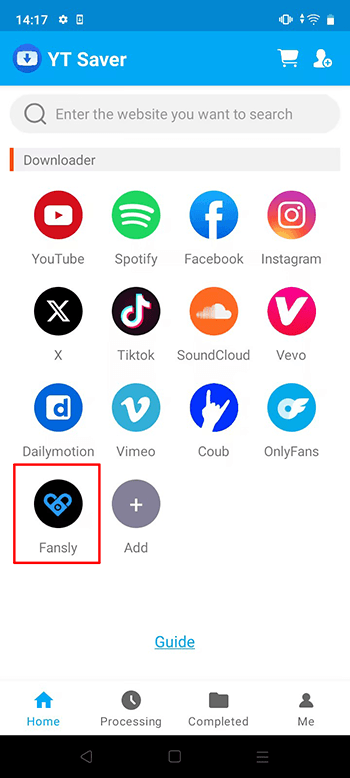
Step 1 Open the YT Saver app on your Android device and wait for the main dashboard to fully load. Click on Fansly logo to access fansly site.
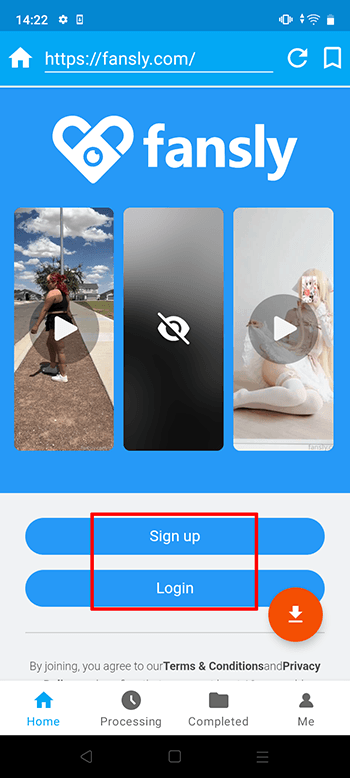
Step 2 Log in your Fansly account via its built-in browser.
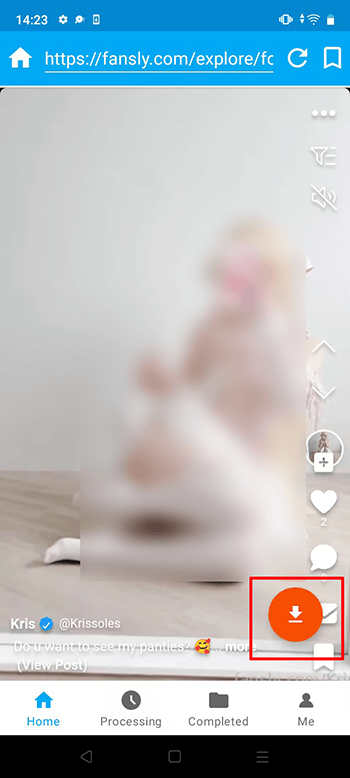
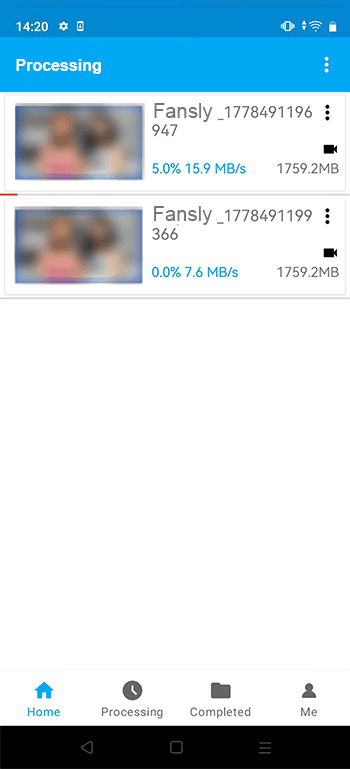
Step 3 Play the video so the app can identify it. Then click on the red arrow download to start the download process.
Step 4 After detection, choose your preferred output format and video quality.
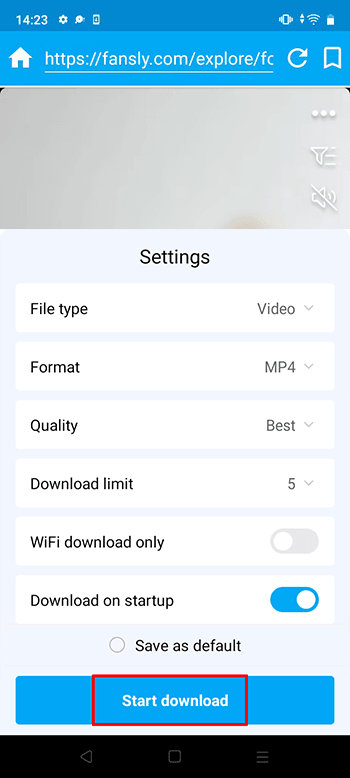
Step 5 Tap download and track the progress in the downloads section. Once finished, your file will be saved on your device.
Use Streamfork Fansly Downloader
Streamfork is a browser-based extension designed specifically for Fansly users who want a more direct download option. Instead of switching between apps or copying links, it integrates into your browser and adds download buttons right on Fansly pages. However, it still requires setup in your browser before use, and it only works for content you already have access to.
How to Download Fansly Videos Using Streamfork?
Step 1: Install the Streamfork extension on your supported browser and complete the setup process.
Step 2: Open Fansly in your browser and log in to your account.
Step 3: Browse to the post or message containing the video you want to download.
Step 4: Click the download button added by Streamfork and choose your preferred quality.
Step 5: Wait for the download to complete and find the file in your device storage or downloads folder.

Use InShot Video Downloader
InShot Video Downloader is another simple Android app that helps you download videos from different websites using a built-in browser or link detection system. It’s designed for quick use, so you can paste a link or browse inside the app and save videos directly to your phone. It’s a general-purpose downloader, so while it works for many platforms, performance may vary depending on the source.
How to Download Video from Fansly Using InShot?
Step 1: Install and open the InShot Video Downloader app on your Android device.
Step 2: Use the built-in browser or paste the Fansly video link into the app.
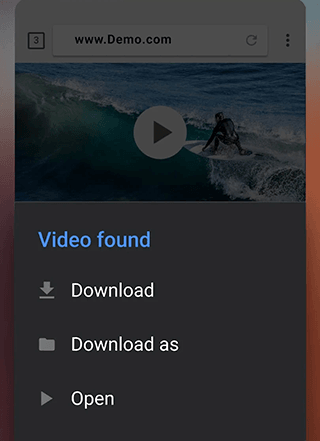
Step 3: Wait for the app to detect the video automatically.
Step 4: Choose the video quality and tap the download button.
Step 5: Check the downloads section to view or play your saved video.
Use Android Built-in Screen Recorder
Another simple option is using your phone’s built-in screen recorder. Most Android devices already include this feature, so you don’t need to install anything extra. It records whatever is playing on your screen and saves it as a video file. This method is useful when direct downloading isn’t possible, but it does depend on real-time recording, so quality can vary based on your device and settings.
How to Record Fansly Videos on Android?
Step 1: Open the Fansly app or website on your Android device.
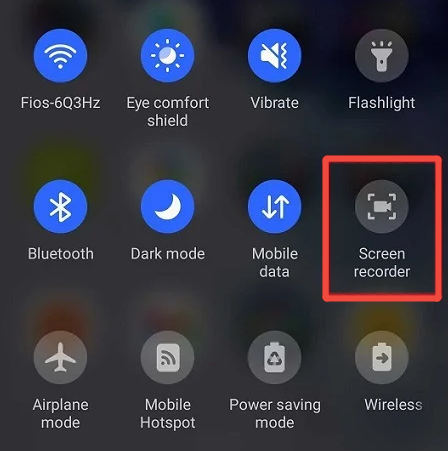
Step 2: Swipe down to access the quick settings panel and tap “Screen Record.”
Step 3: Select audio settings if needed and start recording.
Step 4: Play the video you want to save while recording is active.
Step 5: Stop the recording once finished, and the video will be saved in your gallery.
Conclusion
Downloading Fansly videos on Android isn’t as simple as pressing a download button, mainly because the platform doesn’t offer an official offline option. That’s why most people rely on third-party tools, browser extensions, or even screen recording to save content. Each method has its place. Some are quick and basic, others give you more control over quality and formats. But if you’re looking for something more complete and consistent, YT Saver for Android stands out. It combines HD downloads, format flexibility, and batch support in one place, which makes the whole process smoother and less time-consuming. So instead of switching between different tools, YT Saver is the one option that actually brings everything together in a more practical way.
- [2026 Update] 4 Best Fansly Video Downloader for Android Users
- What is OnlyFans++ APK? It is Really Access Premium OnlyFans Contents for Free? Here is The Answer!
- Streamfork Review: It Is Worth to Purchase? and Best Alternative
- [2026 Update] 4 Best OnlyFans Video Downloader for Android Phones
- AhaSave All Videos Downloader APP for Android Review and Best Alternative

